
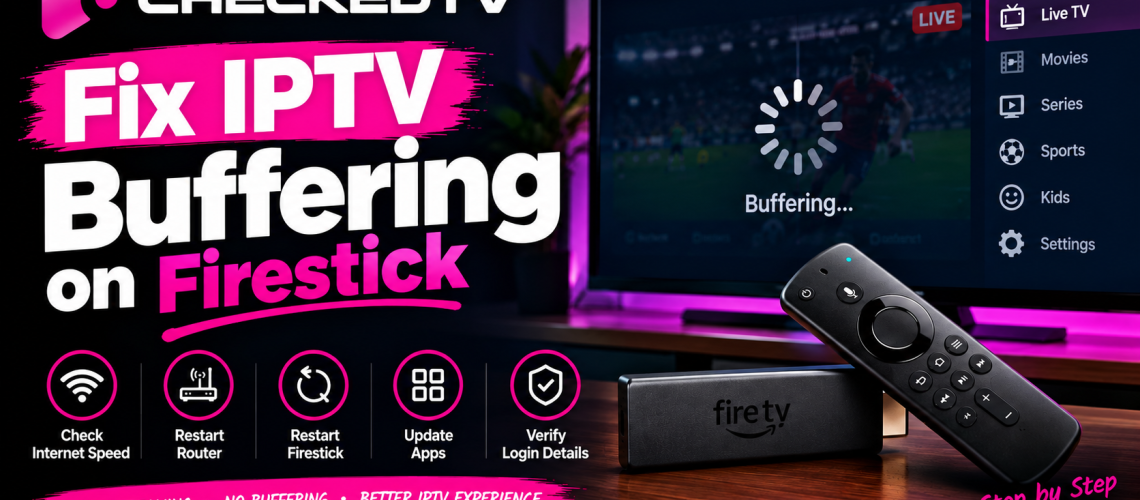
How to Fix IPTV Buffering & Freezing: 7 Proven Methods
Nothing ruins a live match or movie night faster than constant buffering circles and frozen screens. Follow these seven verified technical steps to stop stream lag, eliminate ISP throttling, and enjoy smooth playback on any device.
Why Does IPTV Buffer and Freeze?
Streaming high-bitrate Full HD and 4K video requires constant, uninterrupted data throughput. Unlike Netflix or YouTube, which buffer several minutes ahead, live television streams in real time.
If your device loses even a fraction of a second of connection packets, the screen stutters or freezes completely. The bottleneck usually traces back to four primary culprits:
- ISP Throttling: Internet service providers detect and intentionally throttle high-bandwidth streaming traffic during peak sporting events.
- Local Wi-Fi Congestion: Distance from the router, wall barriers, and 2.4 GHz band interference.
- Device RAM Depletion: Accumulated application cache slowing down video rendering engines.
- Overloaded Provider Servers: Low-cost IPTV servers operating above capacity without multi-CDN load balancing.
7 Proven Steps to Stop IPTV Buffering
Power Cycle Your Router and Streaming Device
Routers accumulate temporary routing data and cached DNS records that slow down live data transfers over time.
- Unplug your modem/router power cable for at least 30 seconds.
- Unplug your streaming device (Fire TV Stick, Android Box, or Apple TV).
- Plug the router back in and wait until all connection lights turn solid green.
- Restart your streaming device and relaunch your IPTV player.
Clear Application Cache & Data
Streaming players like TiviMate, IPTV Smarters Pro, and XCIPTV store temporary stream fragments and EPG data. When cache fills up, playback begins to stutter.
- Open your device Settings > Applications.
- Select Manage Installed Applications.
- Click on your IPTV player and choose Clear Cache.
- (Caution: Do not click Clear Data unless you want to re-enter your login credentials).
Bypass ISP Throttling with VPN or Custom DNS
If your internet speed tests show high speeds on speed test sites but live sports stutter constantly, your ISP is likely throttling media ports.
- Use a secure VPN: Encrypts your data tunnel so your provider cannot identify or throttle video packets.
- Change DNS: Change your network DNS settings to Cloudflare DNS (1.1.1.1 / 1.0.0.1) or Google DNS (8.8.8.8) to prevent domain-level resolution delays.
Switch from 2.4 GHz Wi-Fi to 5 GHz or Ethernet
The 2.4 GHz Wi-Fi band is crowded by smartphones, appliances, and neighbor networks. For seamless 1080p and 4K streams:
- Connect to the 5 GHz Wi-Fi network frequency for higher short-range throughput.
- Better yet, use a wired Ethernet LAN adapter directly into your Firestick or TV box to eliminate packet loss completely.
Change the Video Player Engine (Decoder)
Budget streaming sticks sometimes struggle with default hardware decoders on high-bitrate H.264 or HEVC streams.
- Open your IPTV player settings (e.g., IPTV Smarters or TiviMate).
- Navigate to Player Settings > Player Selection.
- Switch the default engine from Built-in to ExoPlayer or VLC Player.
- Toggle between Hardware Decoding (HW) and Software Decoding (SW) to see which handles high-frame-rate sports better.
Increase Buffer Size in Player Settings
Certain advanced players allow you to adjust stream buffer sizes:
- In TiviMate: Go to Settings > Playback > Buffer size > Set to Medium or Large.
- A slightly larger buffer creates a 2-second data safety cushion, preventing micro-freezes during temporary network blips.
Upgrade to a Premium Anti-Freeze IPTV Service
If you have completed all hardware and network optimizations and the stream still buffers, the issue is the server itself. Cheap or oversold IPTV providers pack thousands of connections onto cheap, unmonitored VPS nodes that crash during major live events.
Reliable streaming requires dedicated server clusters with dynamic load balancers. Discover premium connections on CheckedTV High-Speed Servers.
Recommended Connection Speeds for Buffer-Free Playback
| Stream Resolution | Required Minimum Speed | Optimal Network Setup |
|---|---|---|
| Standard Definition (SD) | 8 Mbps | Standard 2.4 GHz Wi-Fi |
| Full HD (1080p @ 60 FPS) | 20 – 30 Mbps | 5 GHz Wi-Fi / Ethernet |
| 4K Ultra HD & HDR | 40 – 60+ Mbps | Direct Fiber LAN Connection |
Switch to CheckedTV Anti-Freeze Servers
Stream live sports, international premium channels, and 4K on-demand movies without freezing, buffering, or server downtime.
Frequently Asked Questions About IPTV Buffering
Why does my IPTV only buffer during live sports matches?
Live sports draw massive traffic spikes. Weak providers experience server overload, while Internet Service Providers (ISPs) actively throttle IPTV ports during popular games. Using a VPN and choosing an anti-freeze provider fixes this immediately.
Can a Firestick overheat and cause buffering?
Yes. Compact streaming sticks tucked tightly behind warm TV panels can thermal throttle, slowing down the processor and dropping video frames. Keep your stick ventilated using the included HDMI extender cable.
Does lowering stream quality fix buffering?
If your internet bandwidth is limited, switching from 4K/FHD to a 720p HD stream lowers the data demand significantly and allows smoother playback on slow connections.