
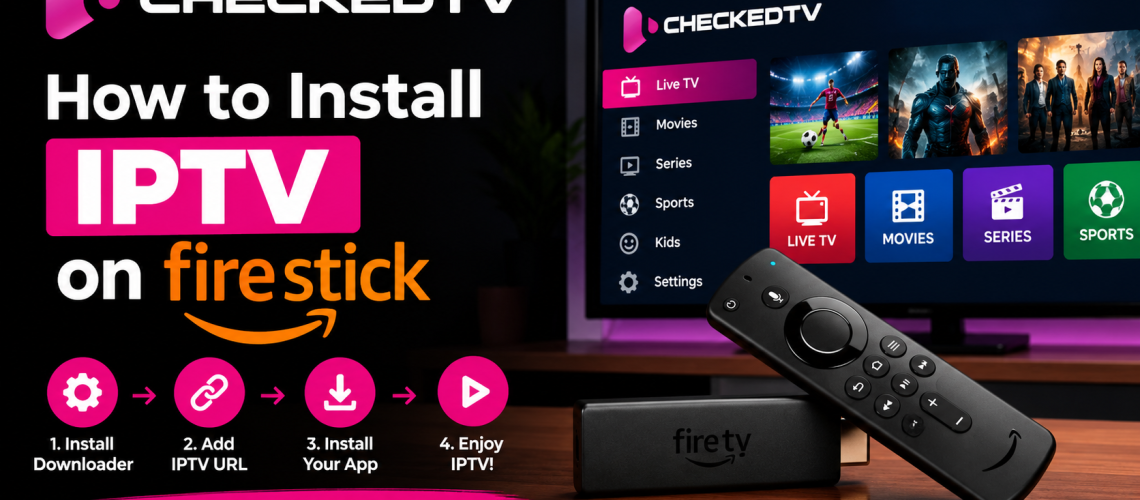
How to Install IPTV on Firestick: Complete Step-by-Step Guide
Looking to stream live television, sports, and on-demand entertainment on your Amazon Fire TV Stick? This complete tutorial walks you through installing a dedicated IPTV player, entering your credentials via Xtream Codes or M3U, and eliminating buffering for smooth playback.
Prerequisites for Firestick IPTV Setup
Before configuring your device, make sure your hardware and network meet the baseline requirements for uncompressed digital streaming:
- An active Amazon Fire TV Stick connected via HDMI.
- A stable internet connection (minimum 20 Mbps recommended via Speedtest).
- Your IPTV credentials: Server URL, Username, and Password (or M3U Playlist link).
- At least 500 MB of free storage on your Fire TV unit for application caching and EPG data.
Step-by-Step Installation Tutorial
Prepare Your Firestick for Third-Party Apps
Because dedicated IPTV players are installed via APK, you need to enable developer settings on your Firestick:
- From the Fire TV Home screen, go to Settings (gear icon).
- Select My Fire TV > Developer Options. (If Developer Options is hidden, click About, then highlight Fire TV Stick and click it 7 times).
- Toggle Install unknown apps (or Apps from Unknown Sources) to ON.
Install Downloader & Your IPTV Player
Use Amazon’s official utility tool to install your media player:
- Go to the Find / Search icon on your Firestick home screen.
- Type
Downloaderand select the orange icon from the official store. - Download and launch Downloader, granting requested storage permissions.
- Enter the direct download code or URL for your chosen player (such as IPTV Smarters Pro or TiviMate) and click Go.
- Select Install once the file downloads, then click Done and delete the setup file to save disk space.
Log In with Your IPTV Credentials
Open your installed IPTV app and link your subscription:
- Select Log in with Xtream Codes API (preferred for fast EPG syncing) or Load your M3U Playlist.
- Enter any profile name (e.g.,
CheckedTV). - Carefully copy and paste your Username, Password, and Portal URL exactly as issued in your subscription confirmation.
- Click Add User or Login.
Load Channels, Movies & EPG
Allow the player 30 to 60 seconds to index the stream directory. You will now have organized tabs for:
- Live TV: Categorized by countries, news, sports, and entertainment.
- VOD (Movies & Series): Searchable video-on-demand libraries with subtitle support.
- EPG (Electronic Program Guide): Real-time schedule grids.
How to Fix Buffering & Freezing on Firestick
If your stream stutters, freezes, or fails to connect, follow these verified fixes:
1. Bypass ISP Throttling
Many internet providers throttle UDP traffic during peak live sports hours. Using secure DNS (such as Cloudflare 1.1.1.1) or a premium VPN restores original line speeds.
2. Clear App Cache
Go to Settings > Applications > Manage Installed Applications, select your IPTV player, and click Clear Cache to free temporary memory.
3. Switch Video Player Engine
Inside your app settings (e.g., Smarters Pro), switch the internal video player from Built-in Player to VLC or ExoPlayer for superior hardware acceleration.
4. Use 5 GHz Wi-Fi or Ethernet
2.4 GHz Wi-Fi suffers heavy interference. Connect to a 5 GHz network or use an Amazon Ethernet adapter for consistent bitrate throughput.
Recommended Internet Speeds for IPTV Streaming
| Resolution Quality | Minimum Speed | Recommended Connection |
|---|---|---|
| Standard Definition (SD) | 5 – 8 Mbps | 2.4 GHz Wi-Fi |
| Full HD (1080p @ 60fps) | 15 – 25 Mbps | 5 GHz Wi-Fi / Ethernet |
| 4K Ultra HD & HDR | 35 – 50+ Mbps | Dedicated High-Speed Fiber |
Get Started with CheckedTV Today
Experience 99.9% uptime, anti-freeze streaming technology, full EPG guides, and 24/7 technical support compatible with all Firestick models and Smart TVs.
Frequently Asked Questions
Can I install IPTV on any Firestick model?
Yes. All modern Fire TV units—including Firestick Lite, Fire TV Stick 4K, 4K Max, and Fire TV Cube—run on Android-based Fire OS and support top IPTV players.
What is the difference between an IPTV Player and an IPTV Subscription?
An IPTV player (like TiviMate or Smarters) is simply an empty media player software. An IPTV subscription (like CheckedTV) provides the server streams, playlists, channels, and VOD content that you load into the player.
Is it safe to use IPTV players on Amazon Fire TV?
Yes, reputable IPTV players themselves are standard media applications. Always ensure your subscription source is secure.