
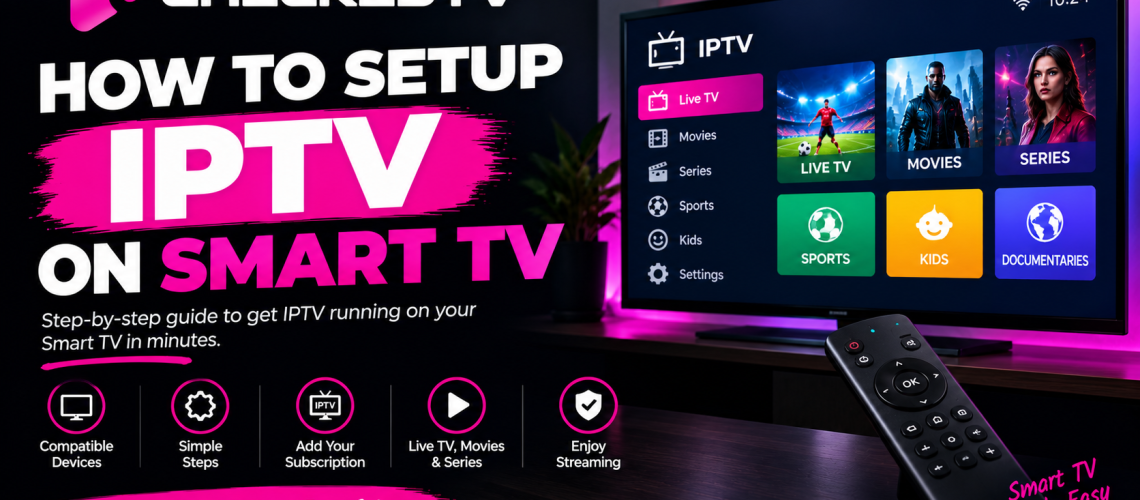
How to Set Up IPTV on Smart TV: Samsung & LG Step-by-Step Guide
Setting up live streaming directly on your Samsung (Tizen OS) or LG (webOS) Smart TV is the cleanest way to enjoy high-definition sports, movies, and live channels without connecting external hardware like an Amazon Firestick or Android TV box.
Top 3 Recommended Media Players for Samsung & LG
Before configuring your channels, you must install a reputable video player engine from your TV’s store. While Firestick users often rely on TiviMate or IPTV Smarters Pro, Smart TVs run specialized webOS and Tizen apps:
1. IBO Player
Ultra-fast channel zapping (under 0.4s), comprehensive EPG guide support, hardware acceleration, and seamless remote playlist sync via web portal.
2. Nanomid Player
Offers advanced stream buffering customization, built-in proxy support, and fluid navigation for large VOD libraries.
3. Smart IPTV (SIPTV)
A reliable classic player lightweight enough for older Samsung Smart TVs, using direct MAC-address activation.
How to Install and Configure IBO Player (Step-by-Step)
Follow this four-step walkthrough to get your playlist live on your television screen:
Install IBO Player from Your TV Store
Power on your television and launch the Samsung App Store or the LG Content Store. Search for IBO Player, select it, and click Download / Install.
Locate Your Device MAC Address and Device Key
Open the app on your TV. On the initial launch screen, you will see two unique values:
- Device MAC:
00:1a:79:xx:xx:xx(12 hexadecimal characters) - Device Key: (A 6-digit security PIN)
Keep this screen open or snap a picture with your phone.
Upload Your Playlist Details Online
Instead of typing lengthy URLs with your TV remote, open a browser on your smartphone or PC and navigate to the IBO Player activation portal:
- Type in your MAC Address and Device Key, then click Login.
- Click on Add XC Playlist (recommended for Xtream Codes API).
- Enter a Playlist Name (e.g.
CheckedTV VIP). - Fill in your Server Portal URL, Username, and Password.
- Click Save Playlist.
Reload Your TV Screen & Start Watching
Go back to your Smart TV and select Reload (or exit and relaunch the application). The player will sync your bouquets, live sports, and VOD categories in seconds.
Troubleshooting Common Smart TV Playback Issues
Smart TVs have less onboard RAM than dedicated streaming devices. If you experience freezing, audio delay, or slow menu navigation, apply these proven adjustments:
🌐 Plug an Ethernet Cable
Internal TV Wi-Fi antennas suffer heavy electromagnetic interference from wall mounts and TV backplates. A direct RJ45 cable provides constant bitrates for 4K streaming.
⚡ Change DNS to Cloudflare
Configure your TV’s network settings with Cloudflare DNS (1.1.1.1) or Google DNS (8.8.8.8) to prevent ISP routing throttling during high-demand live football matches.
🔄 Clear TV App Memory
Unplug your Smart TV power cord for 30 seconds (Cold Reboot). This flushes corrupt temporary cache files from your TV’s internal flash storage.
🛠 Continuous Freezing?
If your screen still pauses during peak streaming hours, follow our complete diagnostic walkthrough on How to Fix IPTV Buffering & Lag.
Looking to set up an Amazon streaming device instead? Check our companion walkthrough on How to Install IPTV on Firestick (Sideload & Downloader Method).
Stream 19,000+ Live Channels with 99.9% Anti-Freeze Uptime
Tired of low-tier servers buffering during premier sports tournaments? Discover CheckedTV’s high-bandwidth, ultra-fast zapping servers engineered specifically for Smart TVs, Firestick, and Android.